Markdown to PDF: Why Your Layout Changes
A Markdown preview and an exported PDF follow different layout rules. Learn how page width, tables, code blocks, headings, images, and links affect the final document—and what to check before sharing it.
A Markdown preview and an exported PDF follow different layout rules. Learn how page width, tables, code blocks, headings, images, and links affect the final document—and what to check before sharing it.
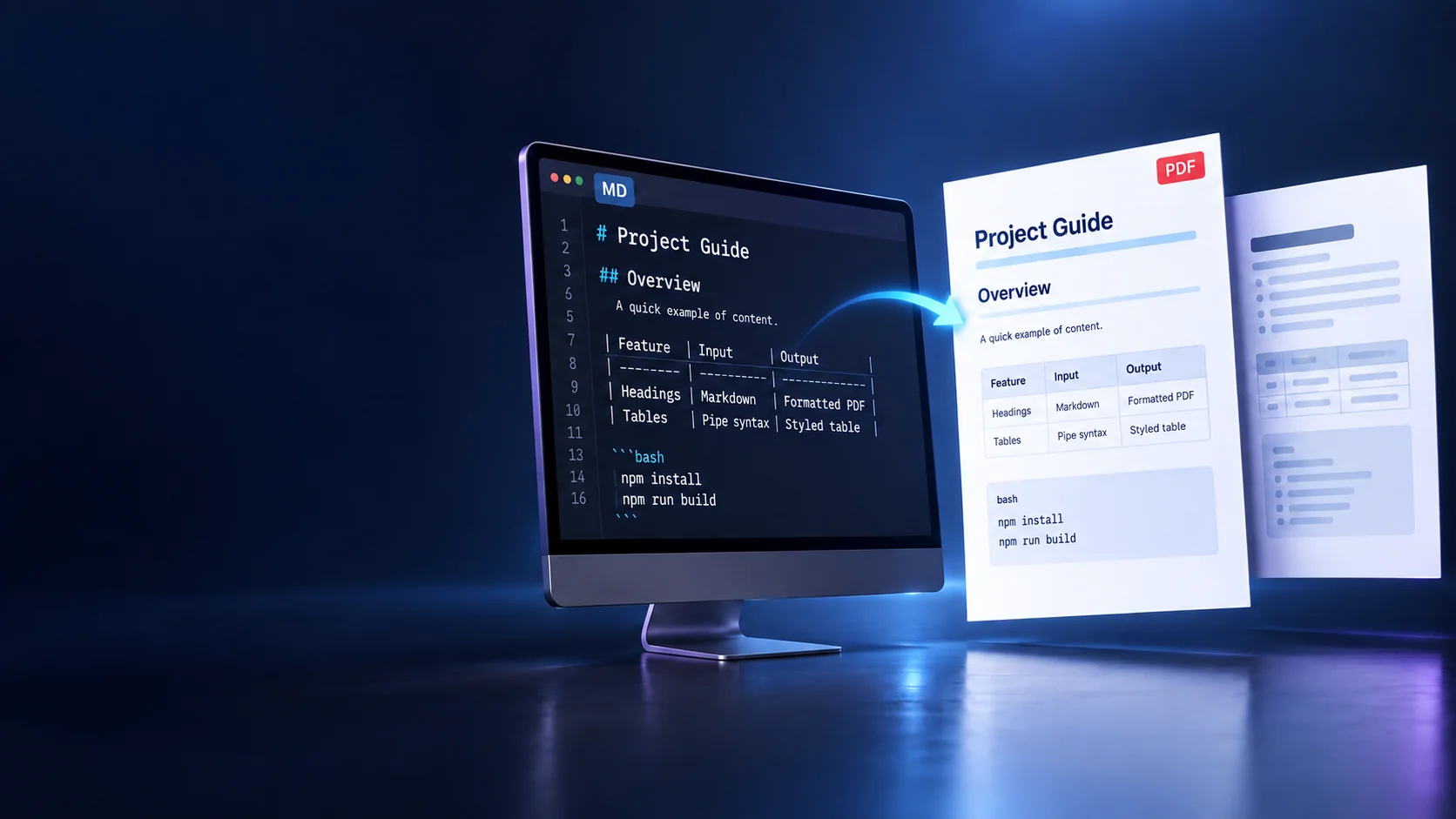
Your Markdown looks right in the preview. You export a PDF and a table stretches beyond the margin, a code listing breaks awkwardly, or a heading moves to a different page. Why did the layout change?
Short version. The browser preview is a scrolling document. PDF export lays content out again inside pages with fixed dimensions and margins. Fonts, wrapping rules and page-break settings affect the result. Preview the exported PDF itself before sharing it.
Think of the browser preview as a long roll of paper and the PDF as a stack of sheets. Everything must fit each sheet. The exporter wraps text and moves blocks to the next page, but a wide table or an unbroken string can still overflow.
The Markdown Editor exports A4 portrait pages with 18 mm side margins. Its preview and its PDF are rendered separately, so a good preview does not guarantee identical output. How many characters fit on a line depends on the font and text size, not on a fixed number.
Changing the browser window or preview width does not change the PDF page size.
Use one # heading for the document title, ## for main sections and ### for subsections. Choose the level for the heading's place in the document, not its visual size.
A logical hierarchy helps readers follow the document. Tools that build an outline or PDF bookmarks from headings depend on it.
If a heading looks too big, fix the styling, not the level.
The PDF stylesheet asks the renderer to avoid a page break immediately after a heading. That helps, but it cannot make every layout fit.
A table that fits the scrolling preview can exceed the page's usable width. Many columns, long URLs and unbroken identifiers all add pressure. Cells can wrap, but a wrapped table can still be crowded and hard to read.
Try these changes:
Four or five columns is a useful starting point, not a technical limit.
If a table genuinely needs a wide layout, use a tool that offers landscape pages. A4 portrait is the wrong container for it.
In the preview, long code lines scroll horizontally. The PDF stylesheet wraps them instead and tries to keep each code block on one page. A block taller than a page may split or overflow, and very long tokens still need checking.
Shorter source lines are easier to read. When you split a command, use its language's continuation rules. In Bash, a trailing backslash continues the line:
printf '%s\n' \
  'First line of the report' \
  'Second line of the report'
The backslash must be the last character on the line, with no spaces after it. Continuation rules depend on the language.
A visual wrap does not change the source code, but copying from a PDF may introduce line breaks. Check copied commands before running them.
For a long listing, show the relevant excerpt and provide the full source separately.
The Markdown Editor's PDF export does not embed images. An image can appear in the preview and still be missing from the PDF. Resizing it will not help.
If your document needs screenshots or diagrams, use an exporter that supports images. Crop screenshots to the part that matters so interface text stays readable when printed.
A digital PDF can keep clickable links, depending on the viewer. A printed copy cannot, so the visible text must tell the reader where to go.
Use descriptive labels rather than “click here.” If readers may need to type an address from paper, show a short URL:
Open the Markdown Editor at vishowtools.com/tools/markdown-editor.
Relative links such as /tools/markdown-editor work on the website but can break in an exported PDF. Use full https:// addresses in documents meant to leave the site, and test every link after exporting.
| Feature | Browser preview | PDF export |
|---|---|---|
| Page area | Continuous scrolling | A4 portrait pages, fixed margins |
| Wide tables | May scroll horizontally | Must fit; cells wrap, overflow still possible |
| Long code lines | Scroll horizontally | Wrap |
| Page breaks | None | Set by page space and layout rules |
| Images | May appear | Not embedded |
| Links | Clickable | Clickable in a viewer; paper needs visible URLs |
Write, preview and export at the Markdown Editor.